- What IAM is and why every AWS action passes through it
- How Users, Groups, and permissions are structured
- How to read and write IAM Policies in JSON
- Why IAM Roles exist and how AWS services use them securely
- MFA, password policy, access keys, and credential best practices
- The two audit tools that keep your account clean
Why this matters
Every single action in AWS - launching an EC2, reading an S3 file, deleting a database - goes through IAM first. Get IAM wrong and you either lock your team out or hand an attacker the keys to everything. This is not a one-time setup. IAM is something you audit, tighten, and maintain continuously. Engineers who treat it as a formality are the ones who wake up to compromised accounts
What is IAM and the Root User Problem
IAM (Identity and Access Management) is a global AWS service that controls two things for every single request made in your account:
Who are you? → Authentication (proving your identity)What can you do? → Authorization (what actions are allowed)IAM is not region-specific. An IAM user you create today works in Mumbai, Singapore, and Virginia equally.
When you first open an AWS account, you get a Root User - created automatically with your account email and password. Root has complete, unrestricted access to everything: billing, IAM, every service, every region. No IAM policy in the world can limit it.
Root User reality: ✓ Full access to billing, support, all 200+ AWS services ✗ Cannot be restricted by any IAM policy ✗ If credentials are stolen → entire account is compromised When to actually use Root (only these 4 cases): * Initial account setup — creating your first IAM admin user * Managing billing and payment methods * Account recovery * Closing the AWS accountCOMMON MISTAKE / WARNING**Security:** Enable MFA on root immediately after account creation. Never create Access Keys for root. Never use it for daily work. Think of root like a master key to your entire office building - you keep it locked in a safe and only take it out in emergencies.
Users, Groups and How Permissions Flow
IAM Users represent one real person or one application. One person = one user. Always. Sharing users makes auditing impossible - if something goes wrong you cannot tell who did it.
Each IAM user gets:
- A username + password → for AWS Console (browser login)
- Access Key ID + Secret Access Key → for CLI and SDK (programmatic access)
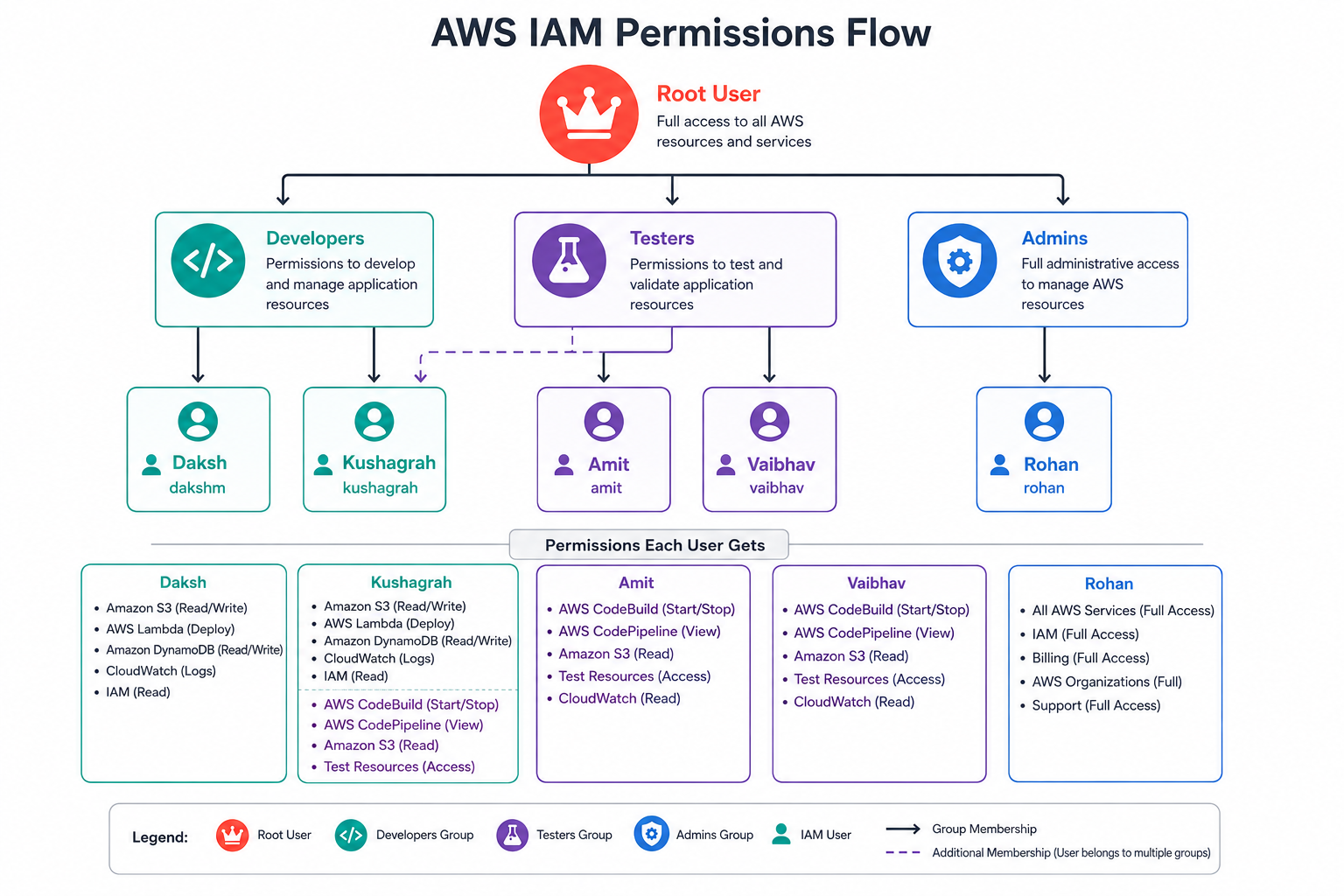
IAM Groups are containers for users with the same job role. Attach a policy to the group once - everyone inside inherits it automatically. When Sneha joins as a tester, add her to the Testers group. When she leaves, remove her. No individual cleanup needed.
Example team at a Bangalore SaaS startup: Group: Developers → Arjun, Rohan → EC2 Full + S3 Read accessGroup: Testers → Sneha → EC2 Read-only accessGroup: Admins → Priya → Full AdministratorAccess Rohan is also added to Group: Audit Team → IAM ReadOnly accessResult: Rohan gets Developer permissions PLUS Audit permissions — combined.Key rules that catch people out:
- Groups contain users only — you cannot nest a group inside another group
- A user can belong to multiple groups — permissions from all groups combine
- A user can exist outside all groups — allowed but not recommended
How permissions flow from group to user:
REMEMBER THIS**Remember:** Always attach policies to Groups, not directly to individual users. It scales. When someone changes roles, just move them between groups - done. Individual user policies pile up silently and become impossible to audit.
IAM Policies - Reading and Writing Permissions
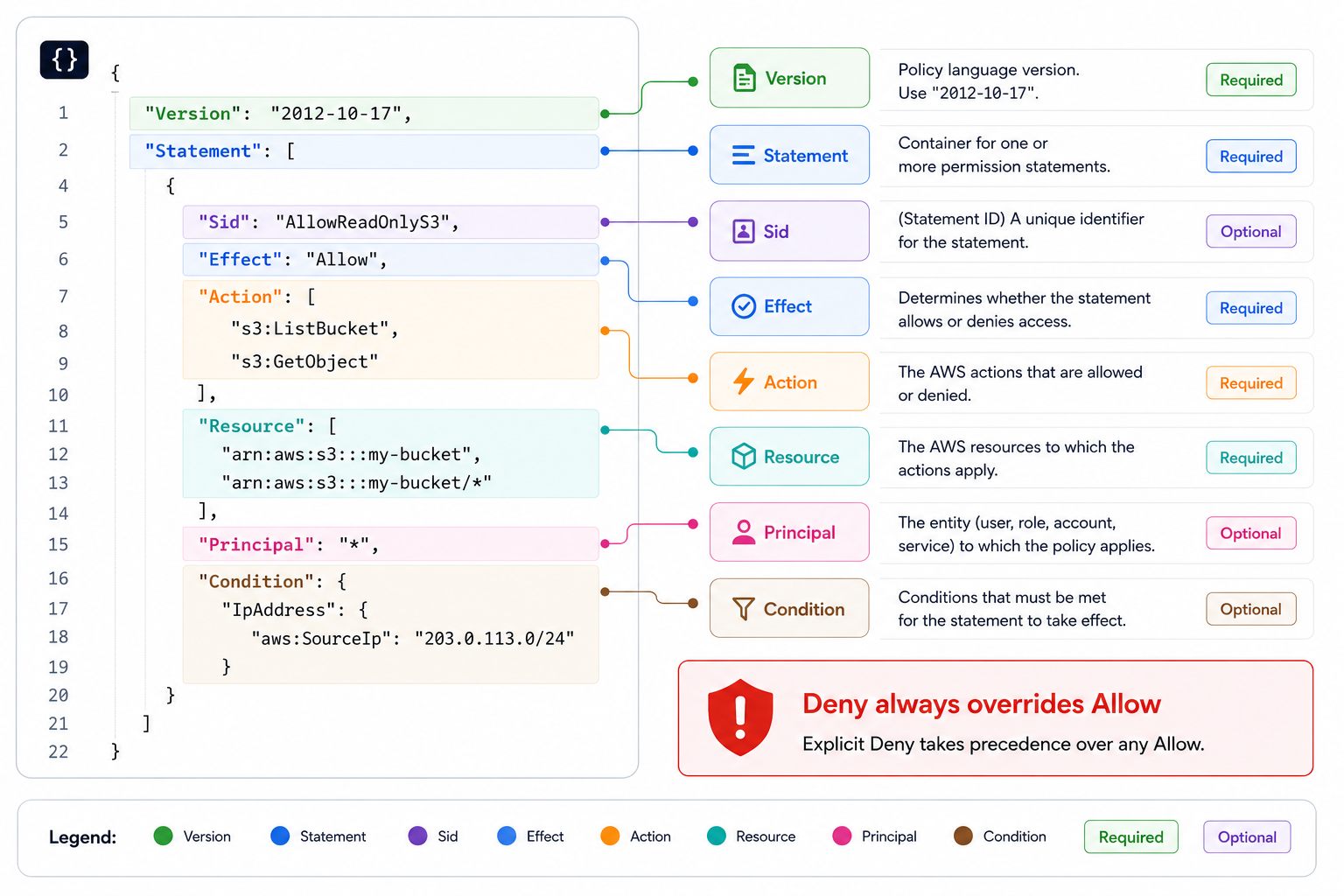
A Policy is a JSON document that defines exactly what actions are allowed or denied on which AWS resources. This is the actual engine behind every permission in AWS.
A real policy - read-only access to one S3 bucket:
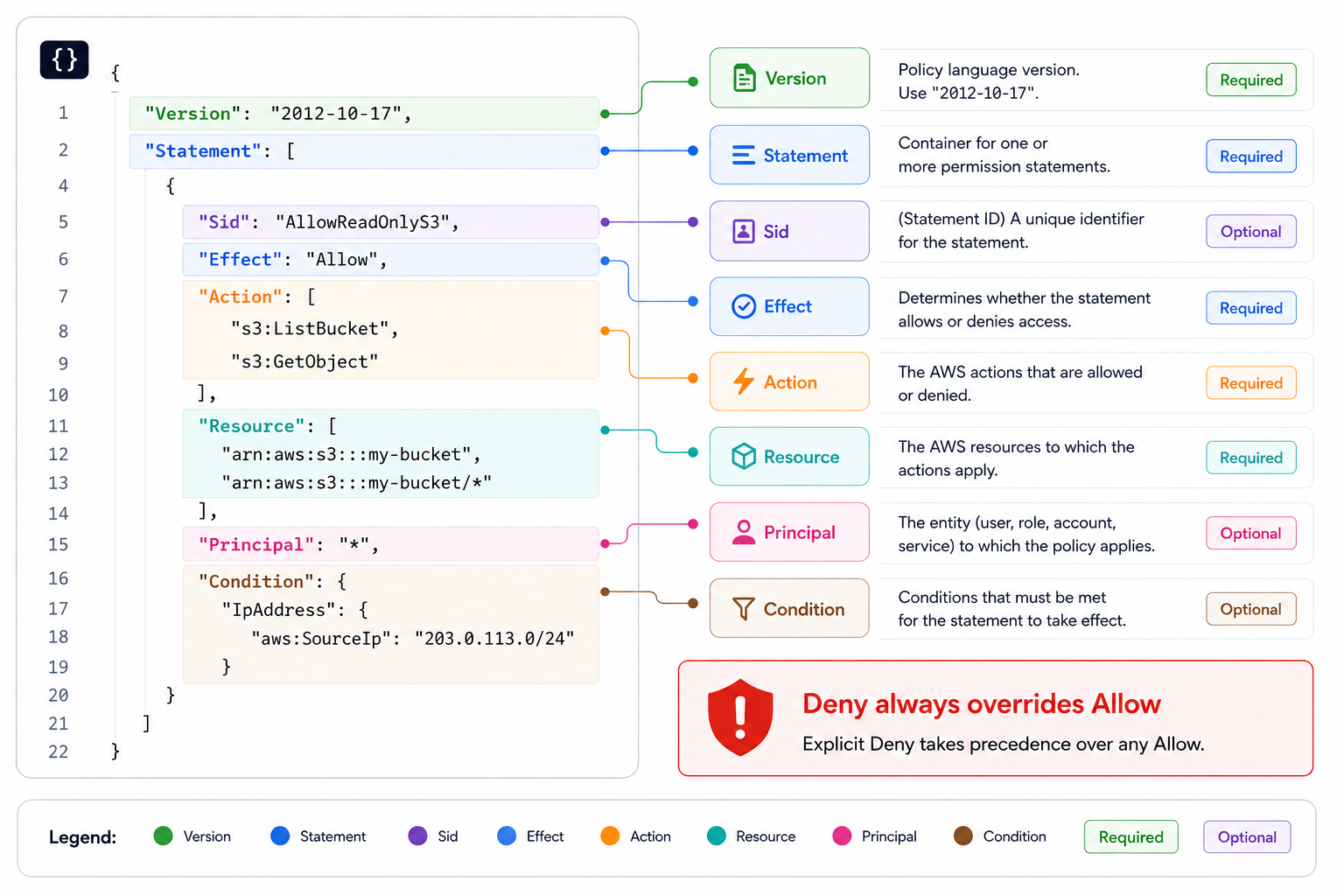
This lets someone read payment logs but explicitly blocks any delete - even if another policy tries to allow it.
Every field explained:
| Field | Required | What it does |
|---|---|---|
Version |
Yes | Policy language version — always "2012-10-17" |
Sid |
No | A readable label for the statement — helps you audit later |
Effect |
Yes | Allow or Deny — what happens when this rule matches |
Action |
Yes | Which AWS API calls this covers — e.g. s3:GetObject, ec2:* |
Resource |
Yes | Which resource — * means all, or a specific ARN |
Principal |
Sometimes | Who the policy applies to (used in resource-based policies) |
Condition |
No | Extra conditions — IP range, MFA status, time of day |
REMEMBER THIS**Remember:** `Effect: Deny` always wins over `Effect: Allow`. If one policy allows an action and another denies it, Deny wins every time - no exceptions. This is called the **explicit deny** rule.
Policy inheritance - Charles gets permissions from two groups:
Developers group → Policy: EC2FullAccess → Alice, Bob, Charles all get itAudit Team group → Policy: IAMReadOnlyAccess → Charles gets this too (he's in both)Inline Policy → Policy: special rule → Fred only — directly on his user Charles = EC2Full + IAMReadOnly combinedFred = his inline policy only (inline not recommended — hard to manage)Three types of policies:
| Type | Created by | When to use |
|---|---|---|
| AWS Managed | AWS | Standard roles — AmazonS3ReadOnlyAccess, AdministratorAccess |
| Customer Managed | You | Custom rules specific to your setup |
| Inline | You (directly on a user/role) | Avoid — not reusable, hard to audit |
IAM Roles - Permissions for AWS Services
IAM Roles solve a different problem from users. AWS services like EC2, Lambda, and ECS often need to call other AWS services. How do you give an EC2 instance permission to read S3 without storing any credentials on it?
The wrong way - what beginners do:
Developer puts AWS keys directly in the application config on EC2: AWS_ACCESS_KEY_ID = "AKIAIOSFODNN7EXAMPLE" AWS_SECRET_ACCESS_KEY = "wJalrXUtnFEMI/K7MDENG/bPxRfiCYEXAMPLEKEY" → Keys stored in code → code pushed to GitHub → repo public for 10 minutes→ Automated scanner finds keys within 60 seconds→ AWS account compromised. Bills run up. Data exfiltrated.The right way - IAM Roles:
Attach IAM Role "ec2-s3-read-role" to the EC2 instance └── Role has policy: Allow s3:GetObject on payment-logs bucket └── AWS SDK on EC2 automatically fetches TEMPORARY credentials └── Credentials expire in 1-12 hours and auto-rotate └── No keys stored anywhere. Nothing to leak. Nothing to rotate manually.User vs Role - the key difference:
| Feature | IAM User | IAM Role |
|---|---|---|
| Designed for | Humans and long-running apps | AWS services |
| Credentials | Long-term — password and access keys | Temporary — auto-rotated, short-lived |
| Risk if stolen | High — valid until manually rotated | Low — expires automatically |
| Example | Arjun logs into Console | EC2 instance reads from S3 |
Common roles you will create in every real project:
EC2 Instance Role → EC2 app reads S3, writes to DynamoDB, calls Secrets ManagerLambda Execution Role → Lambda writes logs to CloudWatch, queries RDSECS Task Role → Container sends messages to SQS, reads from S3CodeDeploy Role → Deployment pipeline pushes to EC2 instancesCloudFormation Role → CloudFormation creates resources on your behalfPLACEMENT PRO TIP**Tip:** If you are ever tempted to put an access key inside an EC2, Lambda, or Docker container — stop. Create a Role instead. AWS SDK automatically retrieves temporary credentials from the Role. No keys. No risk. No manual rotation.
Securing Access - MFA, Password Policy and Access Keys
MFA — Multi-Factor Authentication
MFA = something you know (password) + something you own (a device). Even if someone steals Priya's AWS password, they cannot log in without her phone.
Without MFA: Password stolen via phishing → attacker logs in → full account access With MFA: Password stolen → attacker tries to log in → AWS asks for 6-digit MFA code → Attacker doesn't have Priya's phone → login blocked completelyMFA device options:
| Type | Device | How it works |
|---|---|---|
| Virtual MFA | Google Authenticator, Authy | App generates 6-digit code every 30s — free, works on any phone |
| U2F Security Key | YubiKey (physical USB) | Plug in and tap — strongest physical option |
| Hardware Key Fob | Gemalto device | Physical rotating display — for corporate environments |
| GovCloud Key Fob | SurePassID device | Same but for AWS GovCloud US only |
Password Policy
AWS lets you enforce password rules account-wide for all IAM users:
- Minimum length (12+ characters recommended)
- Require uppercase, lowercase, numbers, special characters
- Allow users to change their own passwords
- Force expiration every 90 days
- Prevent reuse of last N passwords
Set it once: IAM → Account Settings → Password Policy.
Access Keys - for CLI and SDK access
Access Keys are how the AWS CLI and SDK authenticate — they replace username/password for programmatic access.
Access Key ID ≈ username (an identifier — safe to share)Secret Access Key ≈ password (a secret — NEVER share this) Dummy example (never use real keys here): Access Key ID: AKIASK4E37PV4983D6C Secret Access Key: AZPN3zojWozWCndljhB0Unh8239a1bzbzO5fqqkZqNon-negotiable rules for access keys:
- Never commit to Git — scanners watch GitHub, GitLab, Bitbucket 24/7
- Never hardcode in application source code
- Never share with teammates — each person generates their own
- Deactivate immediately if you suspect a leak
- For EC2 and Lambda — never use keys at all, use Roles
Setting up AWS CLI:
## Install AWS CLI (Linux)curl "https://awscli.amazonaws.com/awscli-exe-linux-x86_64.zip" -o "awscliv2.zip"unzip awscliv2.zip && sudo ./aws/install ## Configure with your IAM user access keysaws configure## You will be prompted for:## AWS Access Key ID → AKIASK4E37PV4983D6C## AWS Secret Access Key → your secret key## Default region name → ap-south-1 (Mumbai — for Indian workloads)## Default output format → json ## Verify it worksaws iam get-useraws s3 lsaws ec2 describe-instances --region ap-south-1Three ways to access AWS — when to use which:
| Method | Protected by | Use for |
|---|---|---|
| AWS Management Console | Password + MFA | Humans, browser, exploring, one-off tasks |
| AWS CLI | Access Keys | Automation, scripts, CI/CD pipelines |
| AWS SDK (Python Boto3, Node.js, Java...) | Access Keys | Application code calling AWS APIs |
PLACEMENT PRO TIP**Tip:** AWS CloudShell is a browser-based terminal inside the Console — pre-configured with your credentials, zero local setup. Perfect for quick commands when you're on someone else's machine.
IAM Security Audit Tools
Once teams grow, permissions drift silently. People leave but their users stay active. A service has permissions for 10 AWS APIs but only ever calls 2. AWS gives you two tools to catch this:
IAM Credentials Report — account-level snapshot:
- Downloads a CSV of every IAM user and their credential status
- Shows: password enabled, MFA enabled, access keys active/inactive, last login, last key use
- Use it to find: users inactive for 90+ days (probably left the company), unused access keys
- Location: IAM Dashboard → Credential Report → Download
IAM Access Advisor — user-level permission usage:
Shows which AWS services a specific user or role actually accessed and when
If Arjun has EC2, S3, RDS, Lambda permissions but only ever touched S3 in 90 days → remove the rest
This is least privilege in practice, not just in theory
Location: IAM → Users → Select user → Access Advisor tab
Real example — trimming Arjun's permissions using Access Advisor:
◈ DIAGRAMArjun currently has: EC2Full + S3Full + RDSFull + LambdaFull + CloudWatchFullAccess Advisor shows:S3 → accessed 2 days agoCloudWatch → accessed 1 week agoEC2 → accessed 5 months agoRDS → never accessedLambda → never accessedAction: Remove RDS and Lambda. Review EC2.Result: Smaller blast radius if Arjun's credentials are ever compromised.
REMEMBER THIS**Remember:** Credentials Report = audit the entire account at once. Access Advisor = trim permissions for one specific user or role. Run both monthly.
Hands-on Lab — Set Up IAM the Right Way
This is the exact setup every AWS account should have from day one.
- Log into AWS Console as root → open IAM Dashboard
- Enable MFA on root: IAM → Security recommendations → Add MFA → use Google Authenticator
- Create your first IAM admin user: IAM → Users → Create user → attach
AdministratorAccess→ enable Console access with a strong password - Log out of root → log back in as your new IAM admin user → use this for all daily work
- Create a Group: IAM → User Groups → Create group → name it
Developers→ attachAmazonEC2FullAccessandAmazonS3ReadOnlyAccess - Create test user
arjun-dev→ add toDevelopersgroup → verify combined permissions in the Permissions tab - Generate Access Key for
arjun-dev: IAM → Users → arjun-dev → Security credentials → Create access key → choose CLI use case - On your terminal run
aws configure→ paste the access key and secret → set regionap-south-1 - Test CLI:
aws s3 lsandaws ec2 describe-instances - IAM Dashboard → Credential Report → Download → open CSV and review all users
Expected Result: Root is MFA-protected and unused. You have a working IAM admin user for daily work. A developer user with scoped group permissions exists. CLI access is configured and tested. You have read your first credentials report.